
Add your SSH key
Upload your SSH public key to your OneQode account for secure instance authentication
Last updated: 1/23/2026
Log in to OneQode Cloud
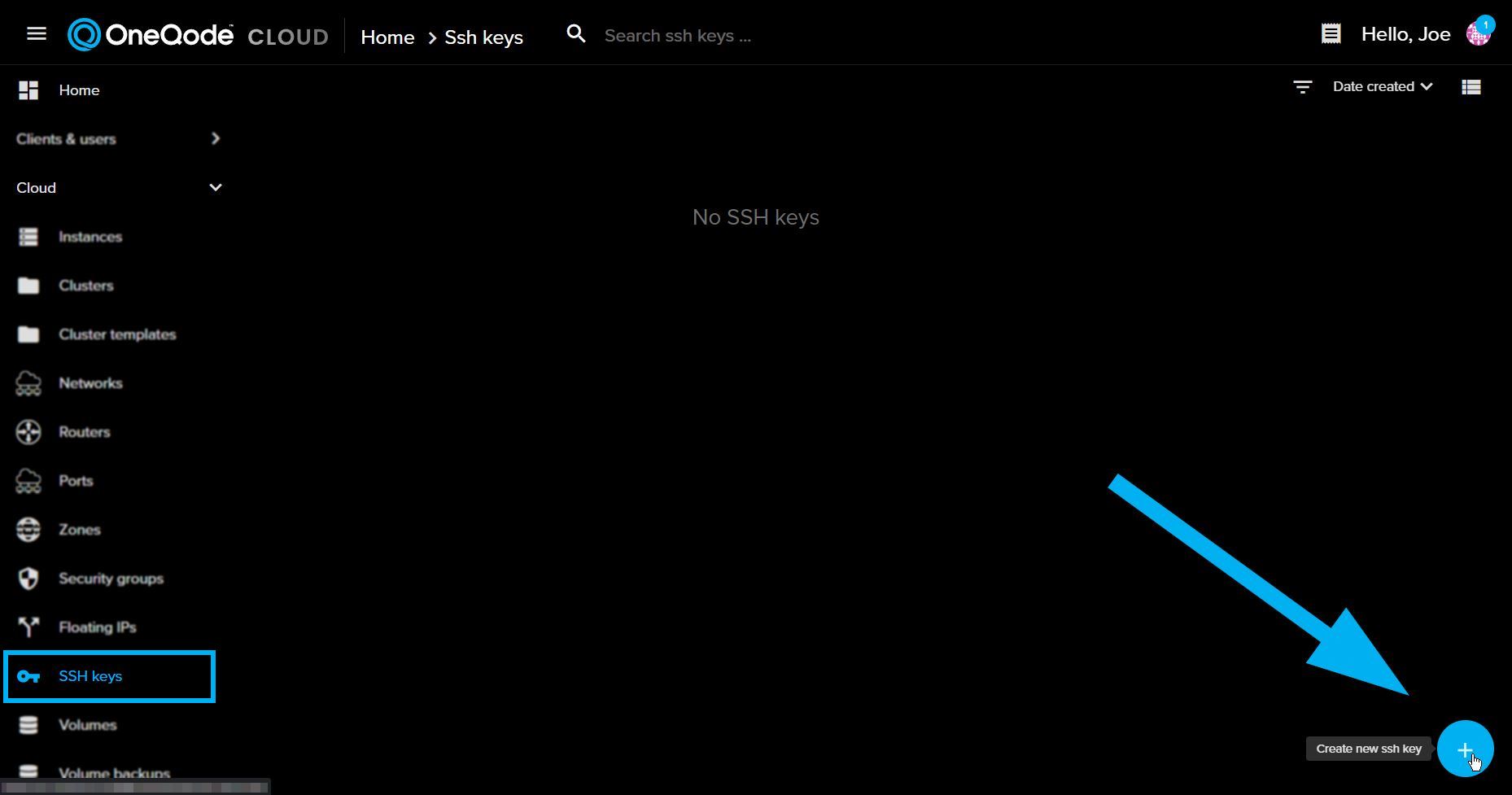
Go to your OneQode Cloud account, then head to Cloud → SSH Keys
Next, click on the “Create SSH Key” button in the the top right corner.
Copy your public key to your clipboard
Before adding your public key to OCS, you’ll need to copy your public key file from your SSH key to your clipboard.
To do this, run the following command in your command line tool:
cat ~/.ssh/id_ed25519.pubThen, copy the resulting output to your clipboard.
Paste your key into the “Key content” field
- In the “Name” field, enter a name for your SSH key This name is for your reference e.g. “Joe’s Laptop”
- In the “Key Content” field, paste your public SSH key This key is used to authenticate with your instances
Finally, click “Save Key” to add the key to your OneQode Cloud account.
Then, you’ll be able to use this SSH key to authenticate with your instances.